Here you can learn how to reset the AirPort Express Base Station.
Note: This article is only for AirPort Express. To reset other base stations, see the AirPort Support Page.
Products Affected
AirPort Express Base Station, AirPort Express with 802.11n
Before AirPort Express, there were only two types of reset, a soft and a hard. AirPort Express introduces a third type of reset, factory default.
* If you forget your base station password, do a soft reset.
* Do a hard reset if AirPort Express stops responding or has network accessibility issues. This reset does not erase saved profiles.
* Do a factory default reset if you need to return AirPort Express to an out-of-box configuration. This erases saved profiles.
The reset button is underneath the audio port:
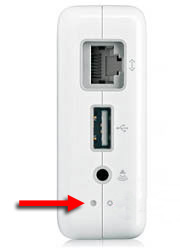
Here's a close-up view of the reset button icon:

To follow the steps below, you'll need a straightened paper clip to press the reset button. When you press it, you should be able to feel the button click into the depressed position. You may want to practice this with the unit unplugged until you get a good feel for the button action.
How to perform a soft reset
1. Make sure AirPort Express is connected to power.
2. From the Apple menu, choose System Preferences.
3. From the View menu, choose Network.
4. From the Show pop-up menu, choose AirPort.
5. Click the TCP/IP tab.
6. From the Configure pop-up menu, choose Using DHCP.
7. Press and hold the reset button for 1 full second. During this time, the light will flash amber, indicating that AirPort Express is in soft reset mode.
Tip: If you do not make your changes within five minutes of pressing the reset button, AirPort Express will return to the previous configuration. The light will change back to solid green (or whatever state it was before the reset).
8. From the AirPort menu bar item, choose the network created by AirPort Express (the network name does not change).
9. Open AirPort Admin Utility. It's in the Utilities folder, which is in the Applications folder.
10. Select AirPort Express, and click Configure. Below you can see the dialog that appears. It allows you to make the following changes:
* IP address: Unless you have been given an IP address by your Internet service provider or system administrator, do not change the IP address.
* Reset the base station password.
* Turn encryption on to activate password protection for your AirPort network. If you turn on encryption, enter a new password for your AirPort network.
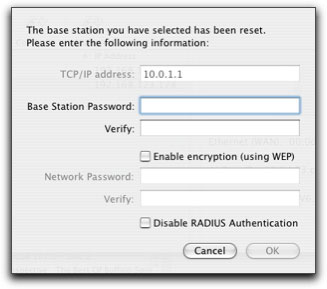
11. Click Update. AirPort Express restarts to load the new settings.
While AirPort Express is in soft reset mode, Access Control and RADIUS settings are temporarily interrupted. All of the AirPort Express base station settings will be available after it has restarted.
How to perform a hard reset
If your AirPort Express stops responding, you may need to hard reset it. You can then restore settings from a saved profile or start all over with the AirPort Express Assistant (Windows), AirPort Setup Assistant 4.1 or later (Macintosh), or AirPort Admin Utility (either platform).
Important:
1. Hard resetting AirPort Express erases all settings other than saved profiles. The settings erased include Access Control and RADIUS settings. AirPort Express must be connected to power during this process.
2. The reset steps vary slightly depending on whether the version of firmware installed on AirPort Express is 6.1.1 or later (downloadable here), or earlier than 6.1.1.
For 6.1.1 or later
1. Push and hold the reset button.
2. Continue holding the button until you see the status light (LED) start to flash rapidly, which should happen after about five seconds.
3. Release the button, and AirPort Express will hard reset.
For firmware earlier than 6.1.1
It's recommended that you update to 6.1.1 or later first if possible. If it's not, then follow these steps:
1. To perform a hard reset, push and hold the reset button for 10 full seconds.
2. Release the button, and AirPort Express will hard reset.
What happens during a hard reset
The light flashes rapidly a few times, then AirPort Express restarts. For a short time, AirPort Express will not be visible in the AirPort menu or AirPort Admin Utility. The whole process takes approximately 45 seconds to complete. You may then use AirPort Express in its default state, reload a saved profile, or reconfigure it using either the AirPort Express Assistant or AirPort Admin Utility. During reset, AirPort Express loads the following default settings:
* Set to request IP address by DHCP
* Base station password is "public"
* Base station name reverts to "Base Station XXXXXX", where XXXXXX is the last six digits of the wireless MAC address
* Network name is "Apple Network XXXXXX", where XXXXXX is the last six digits of the wireless MAC address
A MAC (media access control) address is a unique hardware identification number for a network port. AirPort Express has two MAC addresses: one for the wired Ethernet port and one for the wireless Ethernet port. The wireless MAC address is also known as the AirPort ID.
How to perform a factory default reset
Important: This erases all settings and saved profiles. The settings erased include Access Control and RADIUS settings.
Follow these steps:
1. Unplug the AirPort Express from the power outlet.
2. Press and hold the reset button.
3. Plug AirPort Express back into an AC outlet (still holding the button).
4. Continue holding the button until you see the light flash rapidly, which should happen after a few seconds.
5. Release the button.
As with a hard reset, the AirPort Express will not be visible in the AirPort menu item or AirPort Admin Utility for a short time. Remember that this whole process takes approximately 45 seconds to complete. You may then use the AirPort Express in its default state or reconfigure it using either the AirPort Express Assistant or AirPort Admin Utility. See the above hard reset section for information on the default settings.


